
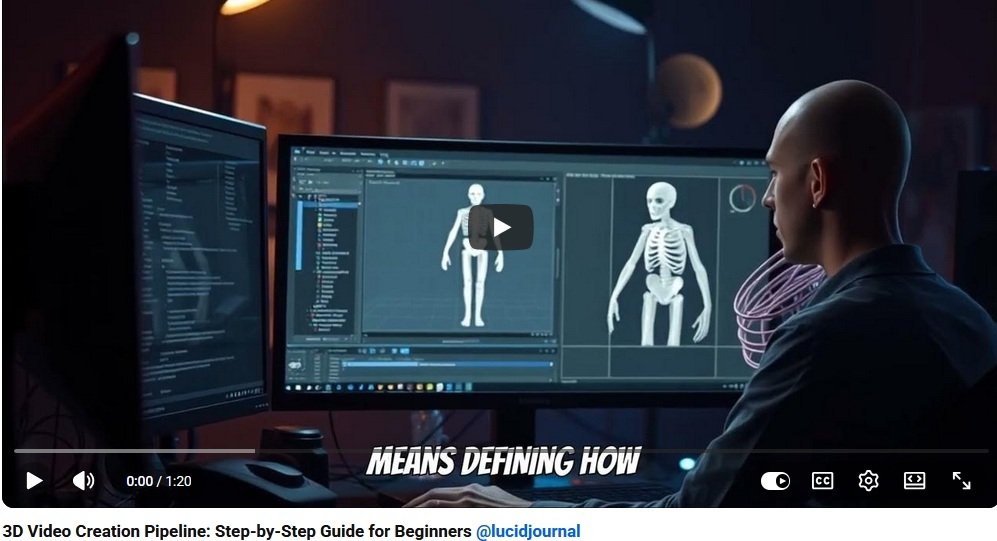
Creating a professional 3D video is not just about opening animation software and moving objects around the screen. A successful 3D video follows a clear production process that begins with an idea and ends with a polished final video. This journey is often called the 3D video production pipeline.
Whether you want to make animated short films, product videos, educational animations, game cinematics, architectural walkthroughs, or social media content, understanding the full process will help you create better results with less confusion.
What Is the 3D Video Production Process?
The 3D video production process is the step-by-step workflow used to plan, build, animate, render, and edit a final 3D video. Each stage prepares the project for the next stage.
The main stages include:
- Concept development
- Script writing
- Storyboarding
- Asset planning
- 3D modeling
- Texturing and materials
- Rigging
- Animation
- Lighting
- Rendering
- Editing and sound
- Final export
Step 1: Develop the Concept
Every 3D video starts with a concept. This is the main idea behind the video. Before creating models or animations, decide what the video should communicate.
Ask yourself:
- What is the purpose of the video?
- Who is the target audience?
- What message should viewers remember?
- Should the tone be fun, dramatic, educational, futuristic, or emotional?
- How long should the video be?
A strong concept gives direction to the entire project.
Step 2: Write the Script
A script organizes the story, narration, dialogue, and visual action. Even a short 3D video benefits from a simple written outline.
A script may include:
- Scene descriptions
- Character dialogue
- Narration
- Camera notes
- Action descriptions
- Sound effect notes
For beginners at 3DArtSchool.org, a short script is usually best. A focused 30-second animation can teach more than a long project that never gets finished.
Step 3: Create the Storyboard
A storyboard is a visual plan for the video. It shows each major shot using drawings, rough sketches, or digital panels.
Storyboards help plan:
- Camera angles
- Scene order
- Character movement
- Object placement
- Timing
- Transitions
- Visual storytelling
The storyboard acts like a map. It helps you see the whole video before production begins.
Step 4: Build an Animatic
An animatic is a rough video version of the storyboard. It places storyboard images in sequence with temporary timing, music, narration, or sound effects.
An animatic helps test:
- Pacing
- Shot length
- Story clarity
- Scene transitions
- Audience flow
Many production problems can be solved at the animatic stage before expensive modeling and animation work begins.
Step 5: Plan the 3D Assets
Before creating the final scenes, list all the digital assets needed for the video.
Assets may include:
- Characters
- Props
- Vehicles
- Buildings
- Furniture
- Background elements
- Environments
- Special effects
An asset list keeps the project organized and helps prevent missing pieces later in production.
Step 6: Create the 3D Models
3D modeling is the stage where artists create the objects, characters, and environments used in the video.
Models can be simple or complex depending on the project. A product video may require one detailed object, while an animated short may require characters, rooms, props, and outdoor environments.
Strong models should have clean geometry, good proportions, and appropriate detail for the video style.
Step 7: Add Textures and Materials
Textures and materials give 3D models their surface appearance. They help objects look like metal, glass, wood, cloth, skin, stone, plastic, or painted surfaces.
Material settings may control:
- Color
- Shine
- Roughness
- Reflection
- Transparency
- Bump details
- Surface patterns
This stage makes the digital world feel richer and more believable.
Step 8: Rig Characters and Moving Objects
Rigging adds control systems to models so they can move. Characters need skeletons and animation controls. Mechanical objects may need hinges, rotating parts, or sliding pieces.
Rigging allows animators to control:
- Arms and legs
- Hands and fingers
- Facial expressions
- Eyes
- Vehicles
- Machines
- Product parts
A good rig makes animation smoother and easier.
Step 9: Animate the Scene
Animation brings the project to life. Animators create movement using keyframes, motion paths, simulations, or motion capture.
Animation may include:
- Character movement
- Facial expressions
- Camera movement
- Product rotation
- Vehicle motion
- Environmental effects
- Logo animation
The goal is not just movement. The goal is meaningful movement that supports the story.
Step 10: Add Lighting
Lighting controls mood, depth, realism, and visual focus. A well-lit scene looks more professional and helps guide the viewer’s eye.
Lighting choices can create a scene that feels:
- Warm and friendly
- Dark and dramatic
- Bright and educational
- Futuristic
- Realistic
- Fantasy-inspired
Good lighting can dramatically improve the quality of a 3D video.
Step 11: Set Up Cameras
Camera placement affects how viewers experience the scene. In 3D software, virtual cameras work like real cameras but can move freely through digital space.
Camera decisions include:
- Shot angle
- Lens length
- Movement
- Framing
- Focus
- Composition
Strong camera work helps create cinematic storytelling.
Step 12: Render the Video
Rendering converts the 3D scene into finished frames. During rendering, the computer calculates lighting, shadows, reflections, textures, camera effects, and motion.
Rendering can be time-consuming, so test renders are important before final output.
Render settings may include:
- Resolution
- Frame rate
- Lighting quality
- Shadow quality
- Motion blur
- Output format
Step 13: Edit the Final Video
After rendering, the video moves into editing. Editing combines shots, adjusts pacing, adds sound, and prepares the final presentation.
Editing may include:
- Cutting scenes
- Adding transitions
- Music
- Voice-over
- Sound effects
- Titles
- Color correction
Editing is where all the pieces come together into a polished finished video.
Step 14: Export for the Right Platform
The final export should match where the video will be used. A YouTube video, website video, social media reel, online course lesson, and client presentation may require different formats.
Common export considerations include:
- Video resolution
- File size
- Aspect ratio
- Compression
- Audio quality
- Platform requirements
Always test the final video before publishing.
Common Beginner Mistakes
- Skipping the storyboard
- Starting with a project that is too large
- Using too many models
- Ignoring lighting
- Rendering without testing
- Forgetting sound design
- Not organizing project files
Most production problems can be avoided through planning and small test projects.
Final Thoughts
The complete 3D video production process takes a project from storyboard to screen through careful planning, modeling, animation, lighting, rendering, and editing. Each stage builds on the one before it.
For beginners, the best approach is to start small and complete simple projects. A short finished animation teaches the full pipeline better than an ambitious project that becomes overwhelming.
With practice, patience, and a clear workflow, students and creators can turn ideas into polished 3D videos that educate, entertain, inspire, and impress.
3D Video Creation Related Articles